Harkirat Chahal
Growth
Share this article
Harkirat Chahal
Growth
Share this article

Learn how to connect Claude Code, Cursor, VS Code, and Claude to your documentation MCP server, control page access, and verify that assistants retrieve current instructions.
A coding assistant using an outdated API example can generate code that no longer matches your product. Connecting it to your published documentation gives it access to current SDK methods, API parameters, and setup instructions during the developer’s task.
This guide explains how to connect coding assistants to your docs through a Model Context Protocol (MCP) server, from publishing setup instructions for tools such as Claude Code and Cursor to controlling access to protected pages. It also shows how to compare retrieved content with the live documentation and verify the assistant’s source links.
Mintlify automatically generates and hosts a search MCP server for each documentation site. Users connect their coding assistant to the documentation site’s MCP server to search and read published pages, signing in with their documentation credentials when accessing protected content.
How documentation MCP servers help coding assistants
A documentation MCP server exposes tools that a coding assistant uses to search and read a publisher’s documentation during a task. For example, when a developer asks how to authenticate an API request, the assistant can retrieve the relevant guide and use its instructions to prepare the code.
Mintlify hosts the server and searches content indexed from the documentation repository, with the documentation team controlling which pages are available. The team publishes the server’s connection address and setup instructions, and developers add that address to a compatible tool such as Claude Code or Cursor. Adding the address makes the documentation tools available to the assistant, which decides when to call them based on the task.
Anthropic’s Claude Code MCP quickstart demonstrates the connection process using its own documentation server. It includes the installation command, a connection-status check, and a prompt that asks Claude Code to use the server. With those three elements in your setup instructions, developers can confirm both that the connection works and that the assistant retrieves documentation through it.
Mintlify’s search MCP server exposes three tools for finding pages, reading documentation, and reporting problems. The assistant chooses which tools to call based on the developer’s task.
Search for relevant pages
Search returns excerpts with page titles and links that the assistant can open and cite. On sites with multiple versions or languages, two optional parameters narrow the results.
-
version: Returns content for the specified release, such as v0.7, along with pages shared across all versions.
-
language: Returns content in the specified language, such as en or es, along with pages shared across all languages.
A prompt that names the product version or language supplies the context the assistant uses to select these parameters. The filter applies when the assistant includes the parameter in its search request.
Read complete documentation pages
The query docs filesystem tool retrieves complete pages as Markdown, extracts sections, and reads several pages in one call. For an installation task, reading the full guide surfaces prerequisites and configuration notes that a search excerpt might omit. Search and page-reading calls do not modify the published documentation.
Report problems with documentation
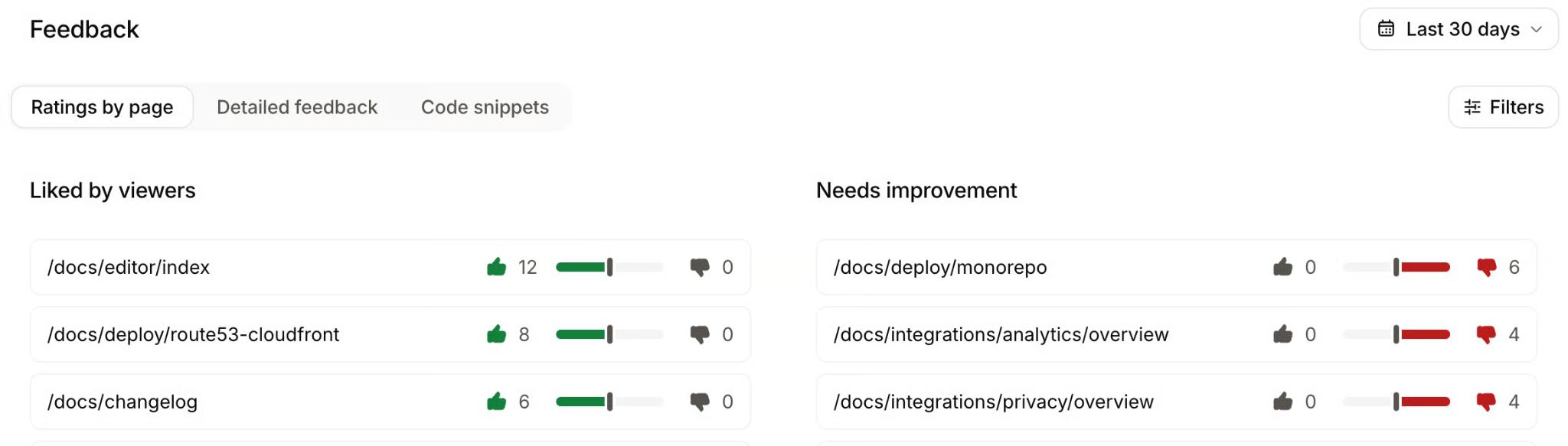
With submit_feedback, an agent reports a page path and a description of an error, missing step, or confusing explanation. Mintlify records accepted reports as unhelpful feedback for that page in the analytics dashboard’s Detailed feedback card, where the documentation team can review them.
The server also exposes the site’s skill.md files as MCP resources. These files describe product capabilities, required inputs, and constraints, so connected agents can read the instructions without installing the skills separately.
Also read: The Mintlify skill for Claude Code, Cursor, and Codex
Public and authenticated MCP endpoints
Choose the server address according to the pages users should be able to retrieve. In these examples, replace your-docs.com with your documentation domain.
| Connection | Example server URL | Available content |
|---|---|---|
| Public | https://your-docs.com/mcp | Indexed public pages, with no sign-in required |
| Authenticated | https://your-docs.com/authed/mcp | Pages the signed-in user has permission to access |
For a site containing both public and protected pages, publish both addresses and explain which connection each audience needs. Mintlify reserves /mcp and /authed/mcp for these servers, so navigation pages must use other paths.
Check the hosting requirements before configuring documentation authentication. Authentication works on custom domains and Mintlify subdomains, such as docs.example.com and example.mintlify.site, but is not supported on custom subpaths such as example.com/docs.
Client credentials for automated callers
Automated callers use client credentials when they cannot complete a browser sign-in. In Project settings → Docs MCP, create a labeled credential, assign any required groups, and save the client secret when it appears. The secret is displayed only once.
Exchange the generated client ID and secret for an access token, replacing the uppercase placeholders below.
curl -X POST https://your-docs.com/authed/mcp/oauth/token \
-H 'Content-Type: application/x-www-form-urlencoded' \
-d 'grant_type=client_credentials&client_id=CLIENT_ID&client_secret=CLIENT_SECRET'
The response includes an access token and a refresh token. Pass the access token in the connection’s authorization header.
claude mcp add --transport http \
my-docs https://your-docs.com/authed/mcp \
--header "Authorization: Bearer ACCESS_TOKEN"
This command registers the authenticated documentation server in Claude Code using the returned access token.
Credentials without assigned groups return public pages and authenticated pages without group restrictions. To change groups or rotate a secret, create a replacement credential, update the callers, and then delete the old credential. Mintlify REST API keys cannot authenticate to this MCP server.
MCP discovery documents and server cards
Discovery documents help compatible tools find a documentation MCP server and read its connection details from the documentation domain. Mintlify generates and hosts these documents automatically.
Server addresses and authentication: /.well-known/mcp and /.well-known/mcp.json return the same JSON document. For a site with authentication enabled, the response includes both connection addresses.
{
  "version": "1.0.0",
  "transport": "http",
  "url": "https://your-docs.com/mcp",
  "servers": [
    {
      "name": "public",
      "url": "https://your-docs.com/mcp",
      "transport": "http",
      "authentication": "none"
    },
    {
      "name": "authenticated",
      "url": "https://your-docs.com/authed/mcp",
      "transport": "http",
      "authentication": "oauth2"
    }
  ]
}
The servers array lists the available endpoints and the authentication method for each one. The authenticated entry appears when the documentation site uses authentication.
Server cards and tool details: /.well-known/mcp/server-card.json describes a single server, and /.well-known/mcp/server-cards.json returns a card for each available endpoint. Each card includes tool names, descriptions, required inputs, and annotations, giving clients tool information before they start an MCP session. Tool names vary by site, so integrations should read them from the response rather than assume a fixed name.
Discovery through response headers: Mintlify also adds an HTTP Link header to documentation responses, including Markdown pages and 404 responses. It points tools to the MCP server card and other agent resources. When specification downloads are enabled, the header also advertises the API catalog.
Link: </llms.txt>; rel="llms-txt", </llms-full.txt>; rel="llms-full-txt", </.well-known/api-catalog>; rel="api-catalog", </.well-known/mcp/server-card.json>; rel="mcp-server-card", </.well-known/agent-card.json>; rel="agent-card", </.well-known/agent-skills/index.json>; rel="agent-skills"
X-Llms-Txt: /llms.txt
This header example includes the optional API catalog entry. Sites using authentication also advertise the OAuth metadata needed by clients to complete sign-in.
Externally hosted servers: Mintlify’s generated discovery documents list only the servers it hosts. To advertise another server, publish its connection URL on an installation page or serve a combined discovery document through a reverse proxy. A custom document must retain the Mintlify server entries so clients still find them, as explained in Mintlify’s guide to advertising an externally hosted MCP server.
Connect your coding assistant to documentation
Publish connection instructions for the clients your users work with. The examples below connect to Mintlify’s own documentation. For your installation page, replace https://mintlify.com/docs/mcp with your documentation site’s public MCP address, or use the authenticated /authed/mcp address for protected content.
Connect with Claude Code
From a terminal in the project directory, run:
claude mcp add --transport http Mintlify https://mintlify.com/docs/mcp
Then check the server’s connection status:
claude mcp list
A ✔ Connected status confirms the server is ready. By default, the configuration applies to the current user and project. Add --scope user to make the server available across your projects, or --scope project to save the configuration in the project’s .mcp.json file. When a team commits that file to the repository, each contributor approves the server before first use.
Connect with Cursor
When the documentation site includes a Connect to Cursor action in its contextual menu, users install the server directly from a documentation page. For manual setup, open the command palette, search for Open MCP settings, and select Add custom MCP to open the configuration file.
Add the server entry within the file’s mcpServers object:
{
  "mcpServers": {
    "Mintlify": {
      "url": "https://mintlify.com/docs/mcp"
    }
  }
}
Cursor reads project-specific settings from .cursor/mcp.json and settings shared across your projects from ~/.cursor/mcp.json. If the file already contains other servers, keep those entries and add Mintlify alongside them.
Connect with VS Code
A Connect to VS Code action in the documentation site’s contextual menu starts installation directly. To configure the server manually:
-
Open the command palette and run MCP: Add Server.
-
Select HTTP (HTTP or Server-Sent Events).
-
Enter the documentation MCP server address.
-
Give the server a unique ID and choose where to save the configuration.
-
Complete any trust or sign-in prompts.
For a configuration shared through source control, the workspace-root .mcp.json destination requires the experimental chat.mcp.workspaceRootConfig.enabled setting. This format uses a top-level mcpServers object; VS Code’s .vscode/mcp.json format uses servers. Follow VS Code’s MCP configuration guide when preparing a configuration file for your team.
Connect with Claude
Claude connects to the documentation server through a custom connector:
-
Open Customize → Connectors, then select + Add → Add custom connector.
-
Enter a connector name and the documentation MCP server address, then click Continue.
-
Review the detected authentication settings and complete the setup prompts.
-
Click Add.
-
In a conversation, open the + menu, select Connectors, and enable the documentation connector.
On Claude Team and Enterprise plans, an organization owner or another user with the required administrative permissions adds the connector first. Each member then connects to it individually.
Signing in to protected documentation
Users connecting to /authed/mcp complete sign-in with their documentation credentials. In Claude Code, claude mcp list shows ! Needs authentication while sign-in is pending. Start a Claude Code session, run /mcp, select the documentation server, and choose Authenticate to open the browser sign-in flow.
MCP permissions, client allowlists, and rate limits
Your documentation’s access rules determine which pages a connected assistant may read. Indexing settings control which pages appear in MCP search results, while client allowlists govern sign-in from additional tools.
Control access to protected pages
When authentication is enabled, pages require sign-in by default. A page without a groups restriction is available to all authenticated users. Adding public: true makes the page accessible to everyone, provided no groups restriction applies.
To restrict a page to a user group, add the groups property to its frontmatter:
---
title: 'Admin dashboard'
groups: ['admin']
---
An authenticated user must belong to at least one listed group to read the page. Group-based access requires OAuth 2.0 or JWT authentication on the Mintlify Enterprise plan. Password authentication is available on the Mintlify Pro plan and Mintlify Enterprise plan, and private access for Mintlify organization members is available on all plans; neither method supports group permissions.
For usage tracking by individual user, include a stable sub identifier in the OAuth user data or JWT payload. Mintlify records that value as user_id on authenticated MCP tool-call analytics. Existing users need to sign in again and reconnect their MCP clients after you add the identifier.
Choose which pages appear in MCP search
Mintlify normally indexes pages included in your docs.json navigation. To include hidden pages, add the following property to docs.json:
{
  "seo": {
    "indexing": "all"
  }
}
The all setting expands search indexing to include pages omitted from navigation and pages under hidden tabs or groups.
For an individual page that should stay out of search results, add noindex: true to its frontmatter:
---
title: 'Hidden page'
description: 'This page is not in the navigation and is not available through search.'
noindex: true
---
The page-level setting excludes the page from MCP search indexing. It does not restrict who can read the page. Use authentication and group permissions for private guides, even when those pages are hidden from navigation or search.
Files matching .mintignore patterns are excluded from processing and publishing altogether. Use this file for repository content, such as internal notes or unfinished drafts, that should stay out of the published documentation.
Allow additional clients to complete sign-in
Claude, ChatGPT, Cursor, and Devin are already permitted to complete MCP authentication. Other web-based clients need their OAuth redirect domain, the hostname used for the callback after sign-in, added to your allowlist.
In the Mintlify dashboard, open MCP → Configure. Under Redirect URIs, enter the client’s domain in Allowed domains and click Add domain. These entries apply to both the search MCP server and the admin MCP server.
Domain entries use https:// by default. For a native application with a custom callback scheme, include the full entry, such as myapp://callback. Mintlify already trusts localhost and 127.0.0.1 and blocks unsafe schemes such as javascript:, data:, and file:.
Account for MCP rate limits
Mintlify applies the following limits across MCP requests:
| Scope | Requests per hour |
|---|---|
| Per user, identified by IP address | 5,000 |
| Search tool calls per site | 10,000 |
| Query docs filesystem tool calls per site | 10,000 |
| Authenticated search tool calls per site | 5,000 |
| Authenticated query docs filesystem tool calls per site | 5,000 |
Requests exceeding a limit receive an HTTP 429 Too Many Requests response. Clients should pause before retrying. Limits use a rolling hourly window; if your site regularly reaches them, contact support@mintlify.com to request higher limits.
Keep editing access with your documentation team
The search MCP server limits users to searching and reading published documentation. Editing and publishing belong to the separate Mintlify admin MCP server at https://mcp.mintlify.com, where team members sign in with their Mintlify accounts and retain their dashboard permissions.
Content changes follow the project’s branch and publishing rules, including pull requests where required. Project settings changed through the admin MCP apply immediately, so access should reflect each team member’s responsibilities.
Help users discover your MCP server
Developers are more likely to find your documentation MCP server when connection instructions appear alongside the guides they already use. Give them a dedicated setup page, then add shortcuts and prompts where they would help with a task.
Publish and link a setup page
Create a page containing your documentation MCP server addresses, connection steps for supported clients, and a short test prompt. Explain which address serves public content and which requires users to sign in with their documentation credentials.
Link to this page from quickstarts, SDK installation guides, and API reference introductions. Include a sample request that names your product and version and asks the assistant to consult the documentation. A request that names the product steers the assistant toward the relevant server, since the assistant decides on its own when to call MCP tools.
Add connection actions to the contextual menu
Mintlify’s contextual menu displays page actions in the header by default. Add the following identifiers to contextual.options in docs.json to offer MCP connection shortcuts:
| Menu option | Identifier | Action |
|---|---|---|
| Copy MCP server URL | mcp | Copies your documentation MCP server address |
| Copy MCP install command | add-mcp | Copies an npx add-mcp installation command |
| Connect to Cursor | cursor | Installs your hosted MCP server in Cursor |
| Connect to VS Code | vscode | Installs your hosted MCP server in VS Code |
| Connect to Devin | devin-mcp | Installs your hosted MCP server in Devin |
Choose the options relevant to your users. Custom menu links support the $mcp placeholder for inserting the hosted server address. For page-specific actions, a contextual object in the page’s frontmatter replaces the global menu configuration on that page.
Provide prompts and agent setup notes
The Prompt component displays a reusable prompt with a copy action and an optional Open in Cursor action. For example, an SDK guide could offer a prompt asking the assistant to inspect the project’s language and framework, consult the documentation MCP server, and explain the applicable installation steps.
To reach agents reading your docs as text, set markdown.instructions in docs.json. Mintlify includes this guidance in the Markdown export of every page, as well as llms.txt and llms-full.txt. Include the documentation MCP server address and a link to the setup page so agents encountering these files also receive connection guidance.
For instructions specific to one page, wrap the notes in <Visibility for="agents">. Mintlify includes that content in Markdown output and omits it from the web page, keeping detailed agent instructions alongside the relevant documentation.
How to verify a documentation MCP server
Before promoting your server, follow your published installation steps in a fresh session for each supported client. Check that the assistant retrieves the expected documentation, respects page permissions, and cites pages that support its answer.
Check tool availability in the client
In Claude Code, run /mcp inside a session, select the documentation server, and inspect its tool list. If the status shows ! Connected · tools fetch failed, run claude mcp get <name>, replacing <name> with the configured server name, to see the error details.
For VS Code’s Copilot sessions, open Chat: Open Customizations → Tools to inspect available tools. Local agent sessions use Configure Tools in the chat input.
Inspect the retrieved content and answer
Ask a question that directs the assistant to the configured server. For the Mintlify server used in the earlier examples, try:
Use the Mintlify MCP server to find the command for previewing documentation locally. Include a link to the page you used.
For your own site, replace Mintlify with the configured server name and choose a question answered by your documentation. Expand the tool call to confirm which server handled the request and inspect the returned content. Then open the cited page and compare its instructions with the assistant’s answer, including any commands, method names, or parameters.
Use the following cases to check content retrieval and access:
| Test | What to check |
|---|---|
| Recently updated content | Ask about a detail changed in the latest deployment. The returned content and answer should match the live page. |
| Versions and languages | Name a version or language in the question and inspect the search parameters and results. Returned pages should match the requested version or language, or apply across them. |
| Protected pages | Test both search and a direct read of a known restricted page as an authorized group member, an authenticated user outside that group, and through the public /mcp endpoint. Inspect the tool responses, not only the final answer. Only the authorized user should receive restricted content. |
| Search indexing | Search for a page omitted from navigation and a page marked noindex: true. Results should follow your indexing configuration, with the noindex page excluded from search. |
| Server discovery | Fetch /.well-known/mcp and confirm that the document lists the public and authenticated endpoints your site provides. |
Also check the restricted page’s HTML and Markdown URLs as an unauthorized visitor. When enabling authentication on an existing site, review and delete old public previews that contain private material; Mintlify’s authentication setup guide explains why existing previews can remain accessible.
Repeat the relevant tests after changing authentication, navigation, or indexing settings.
Monitor usage and reported problems
After launch, review analytics for signs that agents are reaching your documentation and encountering content problems.
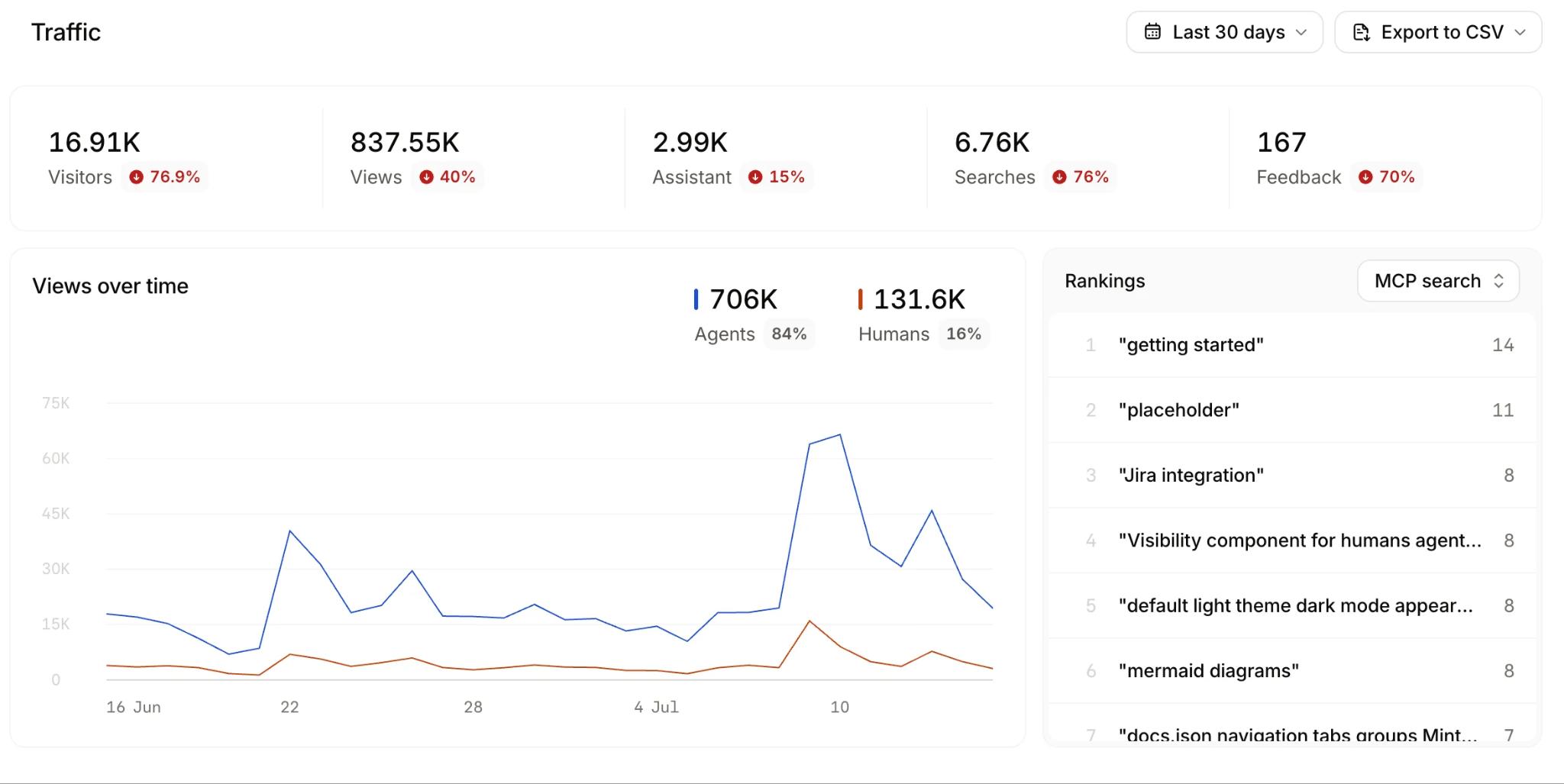
Agent traffic: The Traffic view identifies agent visitors by IP address and user agent, then groups traffic by provider. Use these figures to track which AI tools access your docs and how usage changes over time.
Documentation issues: In Feedback → Detailed feedback, select Agent feedback in the Type filter to review reports submitted through submit_feedback. Agent feedback is currently in beta. Check each report against the page before making an update.
Programmatic review: The analytics feedback endpoint accepts source=agent to retrieve agent reports, including the feedback text in comment and the affected page in path.
MCP, llms.txt, and Markdown export compared
Mintlify provides three ways for AI tools to reach your published documentation. The choice depends on whether the assistant needs to browse an index, read a known page, or search for instructions during a coding task.
| Access method | How assistants reach it | Best fit | On authenticated sites |
|---|---|---|---|
| llms.txt and llms-full.txt | Fetch the documentation index or full-content file by URL | Tools that follow page links or process documentation in one file | Both files require authentication on fully protected sites. On partially authenticated sites, they are publicly accessible and include only public content. |
| Markdown export | Append .md to a page address or request Accept: text/markdown | Reading a specific page when the assistant already knows its address | Follows the page’s authentication rules and user group restrictions. |
| Search MCP server | Connect the documentation server to a compatible AI client | Finding relevant instructions during a task, with batch page reads and filters for versioned or multilingual sites | /mcp returns public content. /authed/mcp requires authentication and returns pages permitted for the user. |
The generated llms.txt and llms-full.txt files cover your documentation’s default version and language. When an automatically generated index exceeds 100,000 characters, Mintlify splits it into linked index files under /_llms/; llms-full.txt remains a single file. An agent reading the index therefore needs to follow any nested index links to reach the documentation pages.
For routine coding tasks, promote the MCP connection when users need their assistant to find relevant pages across the documentation. Keep direct Markdown links available for tasks that already point to a specific guide or API reference.
Mintlify makes your published documentation searchable from coding assistants while your team maintains the same pages developers read on your site. Mintlify handles the MCP hosting and text exports, keeping both audiences connected to the content you publish.
Start for free to set up your documentation site and connect a coding assistant. For documentation restricted to customers or internal teams, talk to the Mintlify team about authenticated access.
Also read: How to Make Your Documentation Agent-Friendly
Frequently Asked Questions
How can assistants access current SDK documentation?
Connect the assistant to the SDK publisher’s documentation MCP server when one is available, and request source links with the answer. Open those links to compare the suggested methods and setup steps against the instructions the product team maintains before applying the code.
What should documentation MCP support include?
Look for hosted search and full-page retrieval, with documentation permissions enforced when protected content is requested. Check which responsibilities remain with your team after launch. With Mintlify’s hosted documentation MCP server, publishers maintain the source pages, configure access, and provide connection instructions for their users.
Does Claude Code support documentation MCP servers?
Claude Code includes support for remote MCP servers, so users connect through its existing configuration tools. A public documentation server needs its connection address; a protected server also requires authentication. Completing that setup makes the server available, while the assistant still chooses when to use its tools during a conversation.
How do assistants find version-specific API documentation?
Name the SDK or API version your project uses and request matching documentation, even when a newer release is available. On versioned Mintlify sites, the version search parameter narrows results to the specified release and shared pages, but the assistant must include that parameter in its request.
Can MCP servers serve private documentation?
Mintlify’s authenticated MCP connection follows the documentation permissions assigned to the person signing in. For example, a customer in a beta-testing group would receive a restricted beta setup guide only when that group has access. Page restrictions for specific groups use OAuth or JWT authentication.
Do public MCP servers require API keys?
Mintlify’s public documentation MCP endpoint requires neither a Mintlify account nor an API key to read documentation. The product described in those pages may still require its own credentials when you run an API example or send a request to the product’s API.
More to read
Context rot: what it is and how to reduce it with your docs
Learn what context rot is, why coding agents lose track of instructions, and how better docs help reduce errors for developers using your product.
November 10, 2026Harkirat Chahal
Growth
AGENTS.md vs CLAUDE.md: how coding agents find docs
Learn how AGENTS.md, CLAUDE.md, skill.md, llms.txt, and MCP work together to help coding agents follow project instructions and access documentation.
November 2, 2026Harkirat Chahal
Growth

How to create Markdown versions of your docs
Generate Markdown versions of your docs, serve them through .md URLs and content negotiation, and test caching, auth, and parity before each release.
October 26, 2026Harkirat Chahal
Growth

How to help AI agents find the right page after a 404
Help AI agents recover from 404s with real status codes, Markdown error bodies, index links, related-page suggestions, and redirects for .md URLs.
October 26, 2026Harkirat Chahal
Growth

How to help AI coding agents find your docs
Help AI coding agents find the right docs page with llms.txt indexes, page links, stable URLs, crawler access, Markdown routes, and retrieval checks.
October 26, 2026Harkirat Chahal
Growth
MCP vs API: what an MCP server adds to your API
Learn what an MCP server adds to an existing API, from tool discovery and filtered responses to docs search, with practical examples of how developers use each.
October 25, 2026Harkirat Chahal
Growth