What is Docker? Docker is a platform for developing, shipping, and running applications in containers. Containers package your application with all its dependencies, ensuring it runs consistently across different environments.
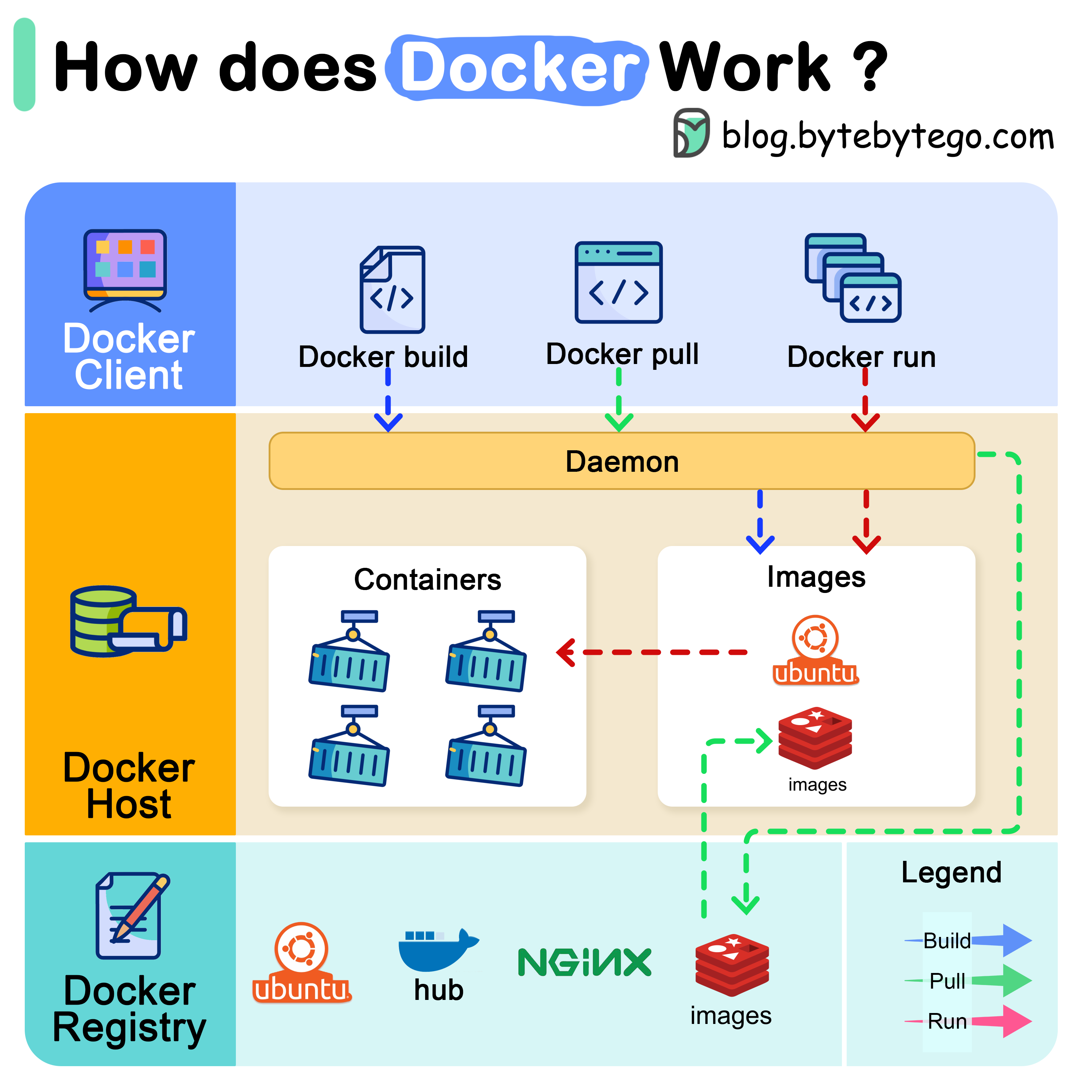
Docker Architecture There are 3 components in Docker architecture:
Docker Client The docker client talks to the Docker daemon. It’s the primary way users interact with Docker through commands like docker build, docker pull, and docker run.
Docker Host The Docker daemon listens for Docker API requests and manages Docker objects such as:
Images
Containers
Networks
Volumes
Docker Registry A Docker registry stores Docker images. Docker Hub is a public registry that anyone can use, but you can also run private registries for your organization.
How Docker Commands Work Let’s examine what happens when you run common Docker commands:
docker pull
Docker daemon contacts the registry and downloads the specified image to the local host
docker build
Docker reads the Dockerfile, executes instructions, and creates a new image
docker run
Docker pulls the image (if needed), creates a container, allocates filesystem, sets up networking, and starts the container
Docker Run Deep Dive When you execute docker run, Docker performs these operations:
Pulls the image from the registry (if not available locally)Creates a new container from the imageAllocates a read-write filesystem to the containerCreates a network interface to connect the container to the default networkStarts the container and executes the specified command
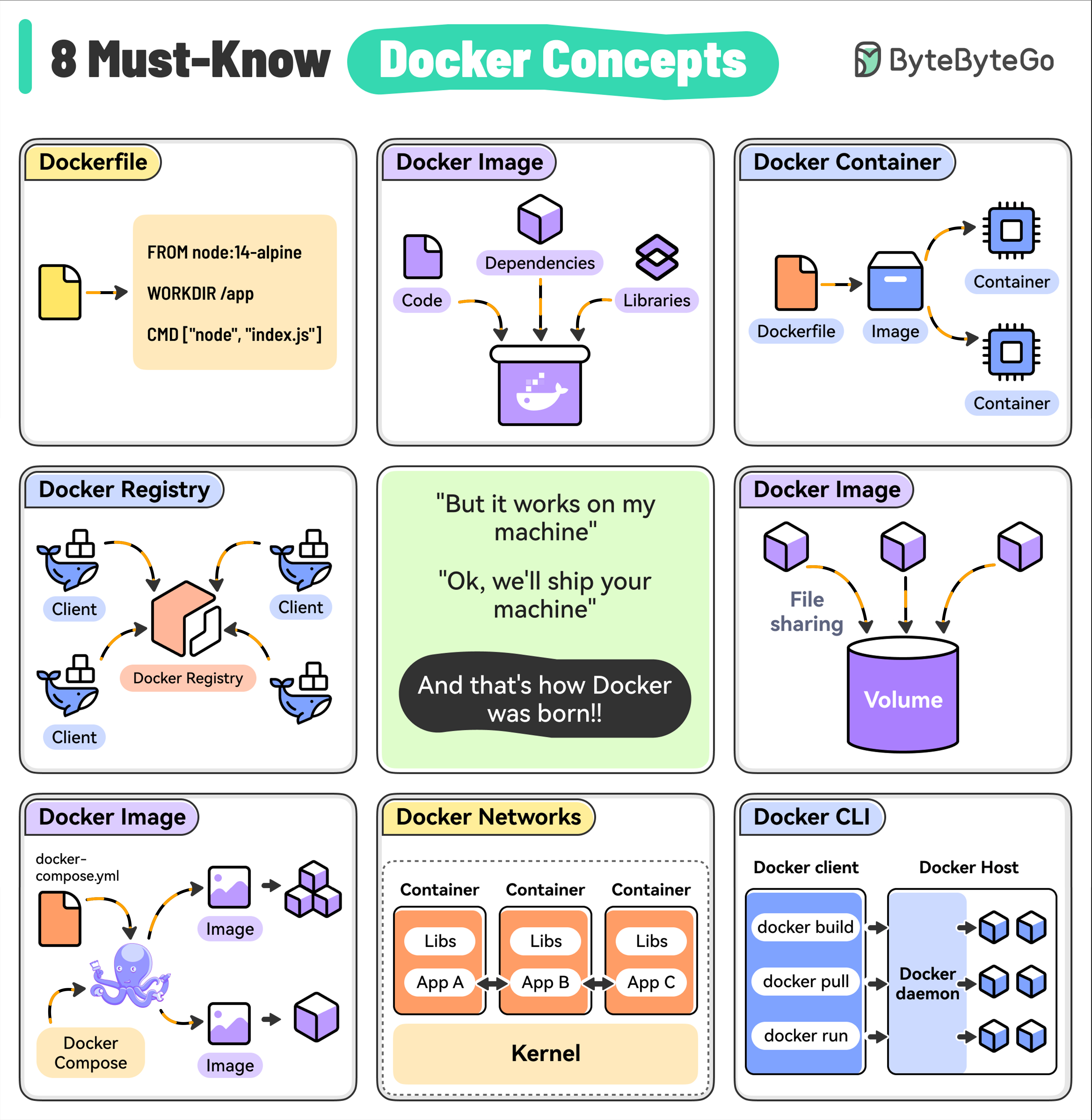
Essential Docker Concepts 1. Dockerfile A Dockerfile contains instructions to build a Docker image by specifying the base image, dependencies, and run commands.
Basic Example
Multi-Stage Build
FROM node:18-alpine WORKDIR /app COPY package*.json ./ RUN npm install COPY . . EXPOSE 3000 CMD [ "npm" , "start" ]
2. Docker Image A lightweight, standalone package that includes everything needed to run your application:
Code
Runtime
Libraries
Dependencies
Environment variables
Images are built from a Dockerfile and can be versioned for consistent deployments.
3. Docker Container A running instance of a Docker image. Containers are:
Isolated from each other and the host system
Lightweight and fast to start
Portable across environments
Ephemeral by design
Run Container
Container Management
docker run -d -p 8080:80 --name my-app nginx
4. Docker Registry A centralized repository for storing and distributing Docker images.
Docker Hub
Private Registry
# Pull from Docker Hub
docker pull nginx:latest

# Push to Docker Hub
docker tag my-app:latest username/my-app:latest
docker push username/my-app:latest
5. Docker Volumes A way to persist data generated by containers. Volumes are:
Outside the container’s file system
Shared between multiple containers
Persistent across container restarts
Volume Management
Using Volumes
# Create volume
docker volume create my-data

# List volumes
docker volume ls

# Inspect volume
docker volume inspect my-data

# Remove volume
docker volume rm my-data
6. Docker Compose A tool for defining and running multi-container Docker applications.
docker-compose.yml
Compose Commands
version : '3.8' services : web : build : . ports : - "3000:3000" environment : - NODE_ENV=production depends_on : - db volumes : - ./logs:/app/logs db : image : postgres:14-alpine environment : - POSTGRES_PASSWORD=secret volumes : - db-data:/var/lib/postgresql/data volumes : db-data :
7. Docker Networks Used to enable communication between containers and the host system.
Network Types
Network Management
# Bridge (default)
docker network create my-network

# Host network
docker run --network host my-app

# None (no networking)
docker run --network none my-app
8. Docker CLI The primary way to interact with Docker.
Image Commands
Container Commands
System Commands
docker images                # List images
docker build -t my-app .     # Build image
docker rmi my-app            # Remove image
docker image prune           # Remove unused images
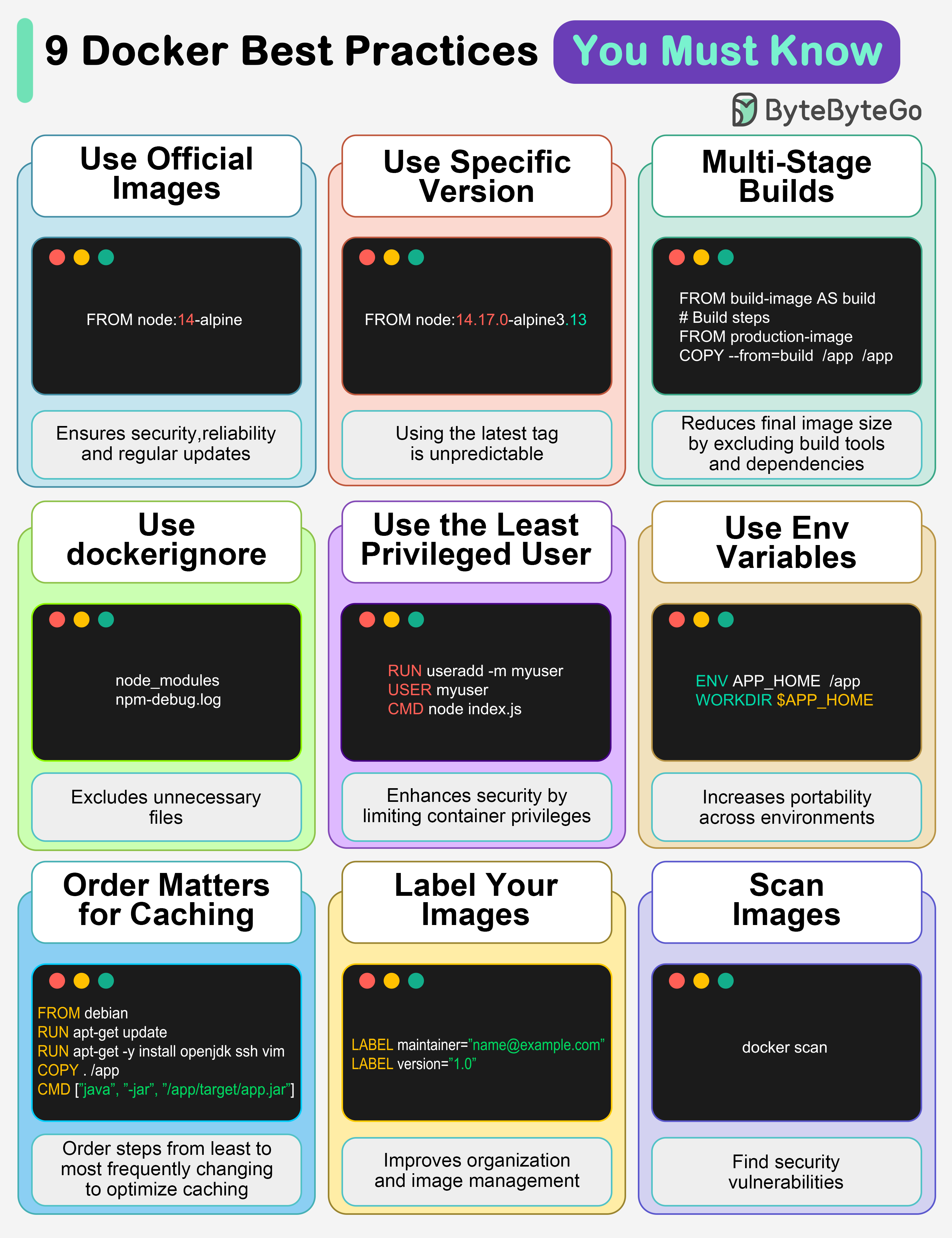
Docker Best Practices 1. Use Official Images This ensures security, reliability, and regular updates.
Official images are maintained by the Docker community or the software vendor and undergo regular security scanning.
2. Use Specific Image Versions The default latest tag is unpredictable and causes unexpected behavior.
Good - Specific Version
Avoid - Latest Tag
FROM node:18.17.0-alpine3.18
3. Multi-Stage Builds Reduces final image size by excluding build tools and dependencies.
Multi-Stage Example
Benefits
# Build stage FROM golang:1.21 AS builder WORKDIR /app COPY . . RUN CGO_ENABLED=0 go build -o main . # Production stage FROM alpine:3.18 WORKDIR /app COPY --from=builder /app/main . EXPOSE 8080 CMD [ "./main" ]
4. Use .dockerignore Excludes unnecessary files, speeds up builds, and reduces image size.
node_modules
npm-debug.log
.git
.gitignore
.env
*.md
.DS_Store
tests
*.test.js
coverage
5. Use the Least Privileged User Enhances security by limiting container privileges.
Create User
Why It Matters
FROM node:18-alpine # Create app user RUN addgroup -g 1001 -S appuser && \ adduser -S appuser -u 1001 WORKDIR /app COPY --chown=appuser:appuser . . # Switch to non-root user USER appuser CMD [ "node" , "index.js" ]
6. Use Environment Variables Increases flexibility and portability across different environments.
FROM node:18-alpine WORKDIR /app COPY . . ENV NODE_ENV=production ENV PORT=3000 EXPOSE $PORT CMD [ "node" , "index.js" ]
7. Order Matters for Caching Order your steps from least to most frequently changing to optimize caching.
FROM node:18-alpine WORKDIR /app # Dependencies change less frequently COPY package*.json ./ RUN npm install # Code changes more frequently COPY . . CMD [ "npm" , "start" ]
8. Label Your Images Improves organization and helps with image management.
With Labels
Filter by Labels
FROM node:18-alpine LABEL maintainer= "[email protected] " LABEL version= "1.0" LABEL description= "My web application" LABEL org.opencontainers.image.source= "https://github.com/company/repo" WORKDIR /app COPY . . CMD [ "node" , "index.js" ]
9. Scan Images for Vulnerabilities Find security vulnerabilities before they become bigger problems.
Docker Scan
Trivy Scanner
Snyk
# Scan local image
docker scan my-app:latest

# Scan with severity filter
docker scan --severity high my-app:latest
Additional Best Practices Minimize Layer Count Good - Combined Commands
Avoid - Separate Commands
RUN apt-get update && \
    apt-get install -y curl vim && \
    apt-get clean && \
    rm -rf /var/lib/apt/lists/*
Use Health Checks Health Check
Check Health Status
FROM node:18-alpine WORKDIR /app COPY . . HEALTHCHECK --interval=30s --timeout=3s --start-period=5s --retries=3 \ CMD node healthcheck.js || exit 1 CMD [ "node" , "index.js" ]
Optimize for Production
Use Alpine Images
Alpine-based images are smaller and have fewer vulnerabilities
Remove Build Dependencies
Use multi-stage builds to exclude build tools
Set Resource Limits
Use --memory and --cpus flags to limit resource usage
Enable Read-Only Root Filesystem
Run containers with --read-only flag when possible
Common Docker Commands Reference Container Management docker create [IMAGE] # Create container docker start [CONTAINER] # Start container docker stop [CONTAINER] # Stop container docker restart [CONTAINER] # Restart container docker pause [CONTAINER] # Pause container docker unpause [CONTAINER] # Unpause container docker kill [CONTAINER] # Kill container docker rm [CONTAINER] # Remove container
Image Management docker build -t name:tag . # Build image docker tag SOURCE TARGET # Tag image docker push name:tag # Push image docker pull name:tag # Pull image
Docker is powerful but requires understanding of best practices for security, performance, and maintainability. Start simple and gradually adopt advanced patterns.